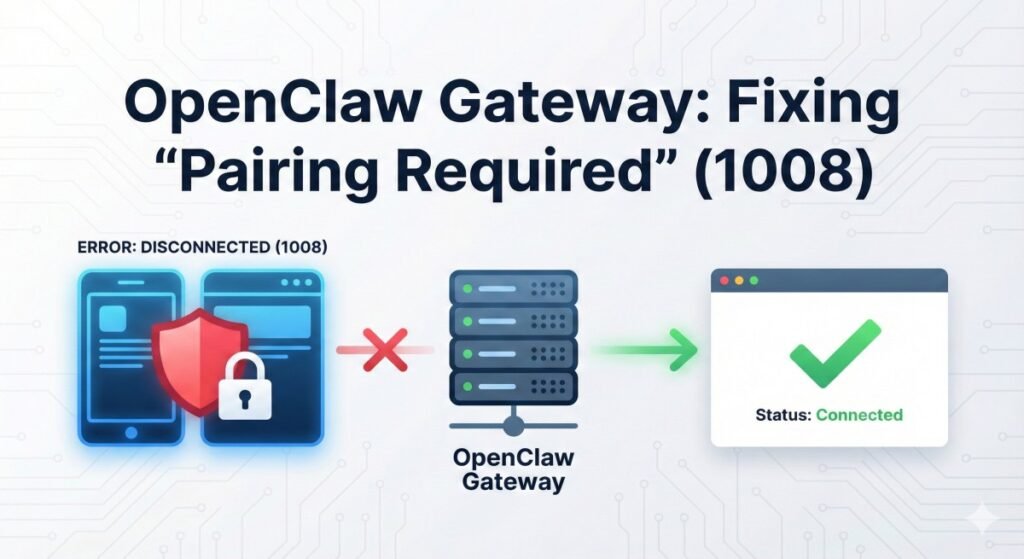
If you’ve encountered the frustrating "disconnected (1008): pairing required" error or OpenClaw gateway connect pairing required while setting up your OpenClaw Gateway, you are not alone.
This WebSocket disconnection error has become one of the most common hurdles for users deploying OpenClaw in various environments—from local development machines to Docker containers and remote VPS instances. The error typically manifests when attempting to access the Control UI or connect mobile nodes, abruptly terminating connections with a cryptic code that leaves many searching for solutions.
Understanding why this error occurs and how to resolve it systematically is essential for anyone building a personal AI assistant infrastructure with OpenClaw.
It’s a Feature, Not a Bug
The “pairing required” mechanism is actually a critical security feature. OpenClaw’s architecture treats every connection as potentially untrusted until explicitly approved. It implements a device-level authentication system designed to prevent unauthorized access to your AI assistant.
This zero-trust approach means that whether you’re connecting from localhost, through a proxy, or from a remote network, each device must go through an approval process. While this enhances security significantly, it can create friction during initial setup or non-standard deployments.
To avoid the “disconnected (1008): pairing required” error, ensure that you follow the OpenClaw gateway connect pairing required steps during your setup process.
This comprehensive guide will walk you through the pairing process, from the underlying security model to implementing solutions for various scenarios.
Background: Understanding OpenClaw Gateway Architecture
What is OpenClaw Gateway?
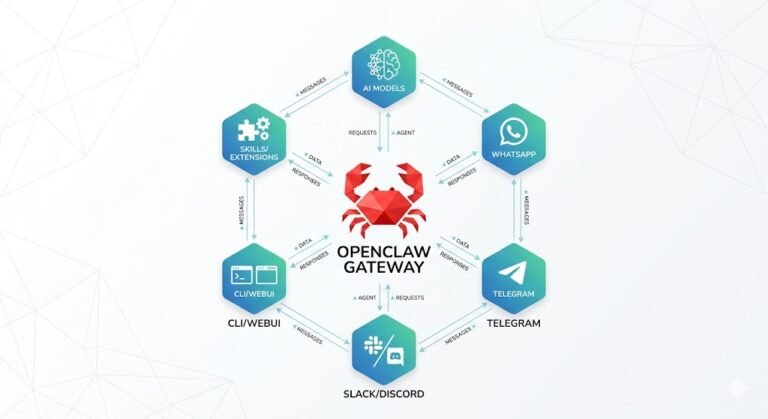
OpenClaw is an open-source personal AI assistant running on your own infrastructure, giving you complete control over your data. At the heart of this architecture lies the Gateway component.
The Gateway acts as the command center. It manages client connections, handles authentication, routes messages between nodes, and provides the central Control UI. It operates using the WebSocket protocol for real-time, bidirectional communication with browsers, mobile apps, and integration nodes.
The Pairing Security Model
OpenClaw implements a device pairing security model requiring explicit approval for each new device. This addresses security concerns from earlier versions where local connections were automatically trusted.
The current implementation treats all connections as untrusted by default. When a new client connects via WebSocket, the gateway checks its trusted device registry. If unrecognized, the connection is terminated with the 1008 status code. Simultaneously, a pending pairing request is created for administrators to review via the CLI or UI.
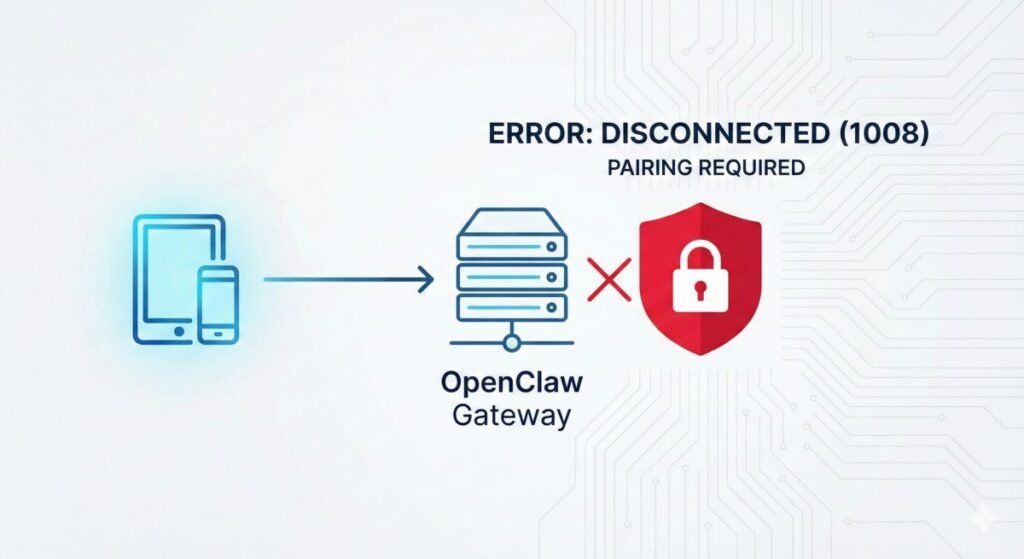
WebSocket Error Code 1008 Explained
According to RFC 6455, WebSocket status code 1008 indicates a policy violation. In OpenClaw’s context, the policy being violated is authentication—the client hasn’t provided valid credentials or a recognized device identity.
Crucially, this means the network connection was successful. Your client reached the gateway server, but the authentication handshake failed. Troubleshooting should therefore focus on configuration and auth, not basic network connectivity.
Root Causes: Why Pairing Errors Occur
We can categorize the most common causes of the 1008 error into four main scenarios.
Scenario 1: First-Time Setup (No Approval)
The most common cause is simply that the device hasn’t been approved yet. When you first install OpenClaw and try to access the Control UI, your browser is an unrecognized device. The 1008 error here indicates the security system is working correctly; you just need to complete the approval process.
Scenario 2: Docker and Containerized Deployments
Docker adds complexity. When a browser accesses the UI through a port mapping, the gateway might see the connection coming from an unexpected IP address due to Docker’s networking stack. Furthermore, pairing commands must be executed inside the container context using docker exec, which isn’t always obvious to new users.
Scenario 3: Proxy and Reverse Proxy Configurations
Deploying behind reverse proxies (like Nginx, Traefik, or Railway) presents a specific challenge: the gateway sees all connections originating from the proxy’s IP, not the actual client’s IP. Without proper configuration, the gateway treats these as untrusted remote access attempts, triggering the pairing requirement even for authorized clients.
Scenario 4: Gateway Token Mismatch
If the error message specifies “unauthorized” rather than just “pairing required,” it may be a token mismatch. The Control UI uses a token to authenticate sessions. If the token stored in the browser’s local storage doesn’t match the gateway’s currently expected token (perhaps due to a config change or regeneration), the connection is rejected.
Step-by-Step Solutions
Here are the systematic methods to resolve pairing required errors across different deployment scenarios.
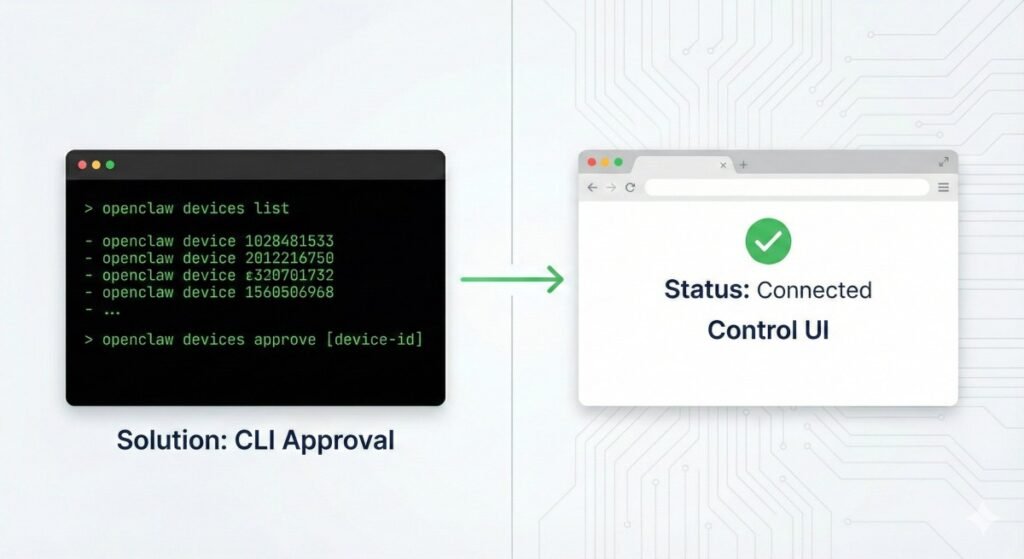
Solution 1: Approving Devices via CLI (Primary Method)
This approach works across all scenarios and gives you the most control.
- Start the OpenClaw gateway and confirm the Control UI fails with the pairing error.
- Open your terminal.
- Run the following command to view pending requests:
openclaw pairing list
# OR depending on version
openclaw devices list- Identify the Device ID corresponding to your client (look for recent timestamps).
- Authorize the device:
openclaw devices approve <device-id>- Refresh the Control UI in your browser; it should now connect successfully.
Note for Docker Users: Prefix commands withdocker exec <container-name>to run them inside the container:
docker exec openclaw-gateway openclaw devices listSolution 2: Configuring Trusted Proxies
If deploying behind a reverse proxy or on platforms like Railway, you must configure trustedProxies. This tells the gateway to trust headers like X-Forwarded-For from specific IP ranges to identify the real client.
Modify your OpenClaw configuration file (typically ~/.openclaw/openclaw.json):
{
  "gateway": {
    // Add your proxy's internal IP or CIDR range
    "trustedProxies": ["10.0.0.0/8", "172.16.0.0/12"]
  }
}
Restart the OpenClaw gateway after saving changes.
Solution 3: Setting Gateway Mode Correctly
OpenClaw gateway operates in different modes that affect how permissive it is with connections.
- local: Designed for single-machine deployments; often auto-approves localhost.
- lan: For clients connecting from the local network.
- tailnet: Integrates with Tailscale for secure remote access.
If you are running locally and having issues, ensure your mode is set correctly in the config file or via openclaw configure.
Solution 4: Token-Based Authentication Setup
As an alternative to device pairing, you can use a shared secret token for the Control UI.
- Obtain the gateway token via
openclaw gateway statusor by checking the config file. - In the Control UI, navigate to Settings and enter the token.
For containerized deployments, pass the token via an environment variable to ensure consistency across restarts: OPENCLAW_GATEWAY_TOKEN=your-secure-token
Conclusion
The "disconnected (1008): pairing required" error is a testament to OpenClaw’s commitment to security-first design. While it introduces initial friction, understanding the security model empowers you to deploy confidently.
By following the systematic troubleshooting approaches outlined above—identifying your deployment scenario and applying the appropriate approval or configuration steps—you can establish stable, secure connections to your OpenClaw Gateway and protect your personal AI infrastructure.