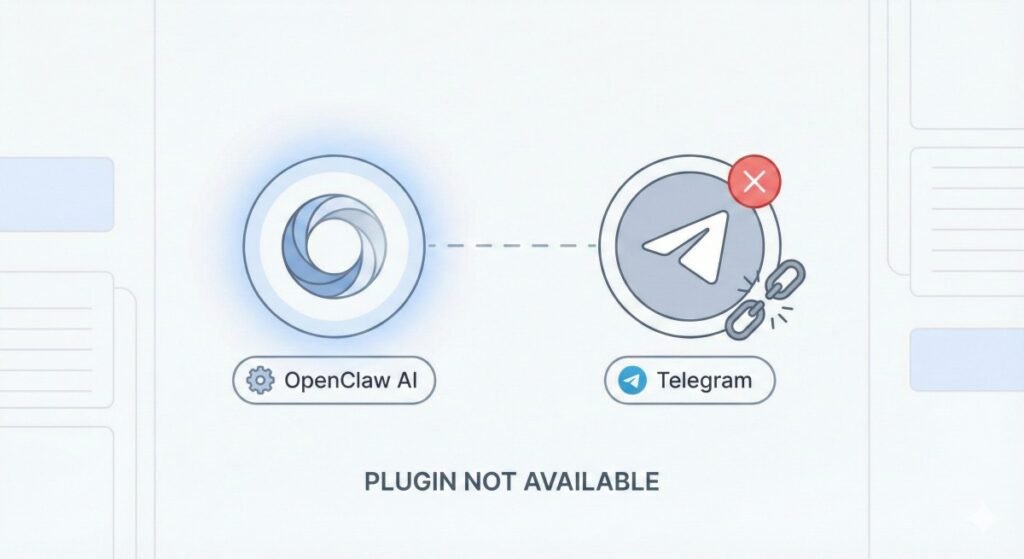
If you’ve encountered the frustrating openclaw telegram plugin not available error while setting up your OpenClaw AI assistant, you’re not alone. This issue has affected numerous users, particularly after recent version updates, and can bring your Telegram bot integration to a complete halt. The error typically appears during the onboarding process when attempting to configure the Telegram channel, leaving users unable to connect their AI assistant to one of the most popular messaging platforms. This comprehensive guide will walk you through understanding the root causes, implementing proven solutions, and getting your OpenClaw Telegram integration back online quickly.
What is OpenClaw and Why Telegram Integration Matters
OpenClaw is an open-source, self-hosted AI assistant platform that enables users to deploy powerful AI chatbots on their own infrastructure. Unlike cloud-based AI services that require sending your data to third-party servers, OpenClaw runs entirely on your local machine or private server, giving you complete control over your data and privacy. The platform supports multiple messaging channels including WhatsApp, Telegram, Discord, Slack, Google Chat, Signal, iMessage, and Microsoft Teams, making it a versatile solution for both personal and professional use cases.
Telegram integration is particularly valuable because of the platform’s robust Bot API, strong support for webhooks and long polling, and widespread adoption across tech-savvy communities. When you connect OpenClaw to Telegram, your AI assistant can interact with users in private chats, group conversations, and channels, responding to messages and executing commands without requiring any manual intervention. This makes Telegram one of the most popular channels for deploying OpenClaw agents, whether for customer support, team collaboration, or personal productivity automation.
The platform uses a plugin architecture where each messaging channel operates as an independent module. The Telegram plugin handles all communication between OpenClaw and Telegram’s servers, managing message parsing, formatting, and delivery. When this plugin becomes unavailable, the entire Telegram integration fails, which is why understanding and resolving this issue is critical for maintaining your AI assistant’s functionality.
Understanding the “Telegram Plugin Not Available” Error
Error Manifestation and Symptoms
The “telegram plugin not available” error typically manifests during the initial setup or channel configuration process within OpenClaw’s onboarding wizard. When users navigate to the Telegram channel setup screen and attempt to add their bot token, instead of the expected configuration interface, they encounter a message stating that the Telegram plugin is not available. This prevents any further progress with Telegram integration and leaves the channel in a non-functional state.
In more severe cases, users who have already configured Telegram may find that their previously working bots become completely unresponsive after an update. According to GitHub issue, one user reported: “After updating from 2026.2.22-2 to 2026.2.23, the Telegram plugin stopped working—no communication possible. The update itself appeared successful (config intact, models available), but the bot was completely unresponsive on Telegram.” This indicates that version updates can introduce breaking changes that affect plugin availability.
Root Causes Analysis
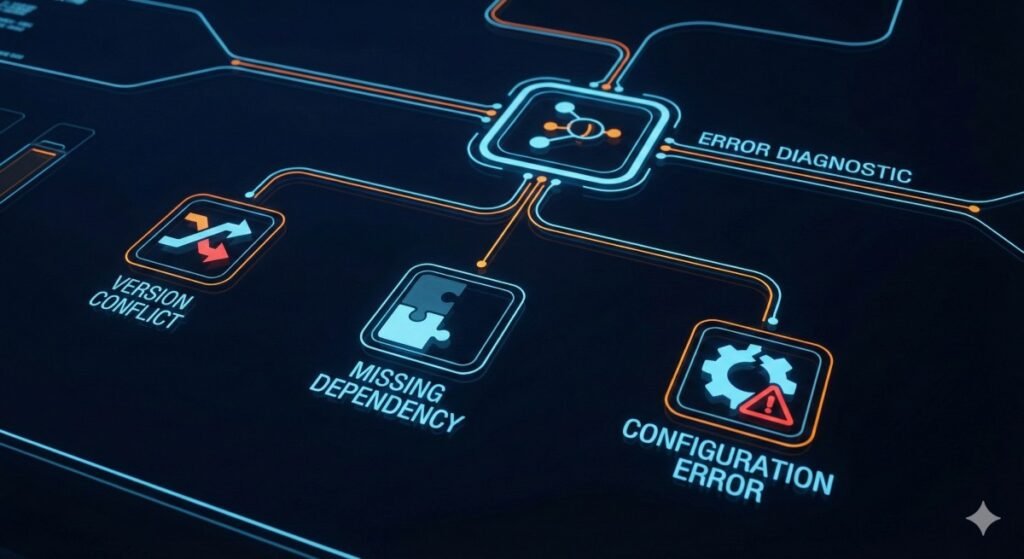
Based on extensive research and community reports, the “telegram plugin not available” error can be attributed to several distinct causes, each requiring a different approach to resolution. Understanding which cause applies to your situation is the first step toward implementing the correct fix.
| Cause Category | Description and Impact |
| Version Update Issues | Updates between versions (e.g., 2026.2.22-2 to 2026.2.23) can break plugin compatibility due to API changes, dependency conflicts, or migration issues. |
| Incomplete Installation | Missing plugin dependencies or failed npm installations can leave the Telegram plugin in a non-functional state. |
| Configuration Errors | Incorrect environment variables, missing bot tokens, or malformed configuration files can prevent the plugin from loading. |
| Environment Conflicts | Node.js version mismatches, missing system dependencies, or conflicting global packages can interfere with plugin operation. |
| Plugin Not Installed | Some OpenClaw installations require manual plugin installation, and the Telegram plugin may need to be explicitly added. |
Table 1: Common Causes of Telegram Plugin Unavailability
Step-by-Step Troubleshooting Solutions
Solution 1: Verify and Reinstall the Telegram Plugin
The most common cause of the “telegram plugin not available” error is a missing or corrupted plugin installation. OpenClaw uses npm packages for its channel plugins, and ensuring the Telegram plugin is properly installed is the first troubleshooting step. This solution addresses issues related to incomplete installations, failed dependency downloads, or plugin corruption that may have occurred during updates.
Follow these steps to verify and reinstall the Telegram plugin:
- Open your terminal or command prompt and navigate to your OpenClaw installation directory. If you installed OpenClaw globally, you can skip this step.
- Check the current plugin status by running:
openclaw plugins list - If the Telegram plugin is missing or shows an error status, install it using:
openclaw plugins install @openclaw/telegram - Wait for the installation to complete. The installer will download all necessary dependencies using npm with the
--ignore-scriptsflag for security. - Restart OpenClaw with:
openclaw restart - After completing these steps, navigate to the channel setup interface and verify that the Telegram option is now available. If the plugin still shows as unavailable, proceed to the next solution.
Solution 2: Roll Back to a Previous Working Version
If the error appeared immediately after an update, a version rollback may be necessary. This is particularly relevant for users who updated from version 2026.2.22-2 to 2026.2.23, as documented in the GitHub issue. Rolling back to a known working version can restore functionality while waiting for a permanent fix in a future release.
Steps to roll back OpenClaw to a previous version:
- First, backup your current configuration by copying the
.envfile and any custom config files to a safe location. - Uninstall the current version:
npm uninstall -g openclaw - Install the previous working version:
npm install -g openclaw@2026.2.22-2(adjust version number as needed) - Restore your configuration files from the backup
- Start OpenClaw and verify Telegram integration:
openclaw start
Solution 3: Fix Configuration and Environment Variables
Configuration errors can prevent the Telegram plugin from loading correctly. OpenClaw requires specific environment variables and configuration settings for the Telegram channel to function. Missing or malformed configurations will cause the plugin to fail initialization, resulting in the “not available” error.
Required configuration elements for Telegram integration:
TELEGRAM_BOT_TOKEN: The bot token obtained from @BotFather when creating your Telegram botchannels.telegram.enabled: Must be set totrueinopenclaw.yamlchannels.telegram.groups: Configuration for group chat access (if applicable)
To verify your configuration, run the diagnostic command: openclaw doctor --fix. This command checks your configuration for common errors and attempts automatic fixes where possible. The doctor command can resolve issues like @username allowlist entries that need to be converted to numeric Telegram user IDs, which is a common configuration migration issue.
Solution 4: Check Node.js Compatibility and Dependencies
OpenClaw has specific Node.js version requirements, and running an incompatible version can cause plugin loading failures. The documented case in GitHub issue #24718 used Node.js v22.22.0, but your environment may have different requirements based on your specific OpenClaw version.
Environment verification steps:
- Check your Node.js version:
node --version - Verify npm version:
npm --version - If using an incompatible Node.js version, consider using nvm (Node Version Manager) to switch to a compatible version:
nvm use 22 - Clear npm cache and reinstall:
npm cache clean --force && npm install -g openclaw
Best Practices for Stable Telegram Integration
Preventing the “telegram plugin not available” error requires implementing proper setup and maintenance practices. By following these best practices, you can minimize the risk of encountering plugin issues and ensure your OpenClaw Telegram integration remains stable through updates and configuration changes.
Version Management Strategy
Before updating OpenClaw to a new version, always check the release notes for any breaking changes or known issues affecting the Telegram plugin. Consider testing updates in a staging environment before applying them to your production setup. Maintain a backup of your working configuration so you can quickly roll back if issues arise. Document your current version number and the specific Telegram plugin version for easier troubleshooting.
Configuration Backup and Recovery
Implement a regular backup schedule for your OpenClaw configuration files, including the .env file, openclaw.yaml, and any custom plugin configurations. Store these backups in a version-controlled repository or a secure backup location. This practice enables quick recovery from configuration-related issues and provides a reference for debugging problems that may arise after changes.
Monitoring and Health Checks
Set up monitoring to detect Telegram integration failures early. OpenClaw provides the diagnostic command openclaw doctor that can be scheduled as a cron job or scheduled task to check system health periodically. Implementing automated alerts when the Telegram bot becomes unresponsive allows you to address issues before they significantly impact your users or workflows.
Alternative Solutions When Standard Fixes Fail
In some cases, standard troubleshooting may not resolve the “telegram plugin not available” error. When this happens, alternative approaches can help you restore functionality while waiting for a permanent solution or provide entirely different paths to achieve your integration goals.
Clean Reinstallation
A complete reinstallation of OpenClaw can resolve persistent issues that other solutions cannot fix. This approach removes all potentially corrupted files and configurations, providing a clean slate for setup. To perform a clean reinstallation, uninstall OpenClaw completely, remove all configuration directories, clear the npm cache, and then perform a fresh installation. Remember to backup your configuration before proceeding, as this process will remove all customizations.
Docker Deployment
Running OpenClaw in a Docker container provides isolation from system-level conflicts and ensures a consistent runtime environment. Docker images typically include all necessary dependencies pre-configured, reducing the likelihood of environment-related plugin failures. This approach is particularly useful for users experiencing Node.js version conflicts or system dependency issues on their host machines.
Community Support and Bug Reporting
If none of the solutions resolve your issue, the OpenClaw community and development team can provide assistance. Report your issue on the OpenClaw GitHub repository, including detailed information about your environment, the exact error message, steps you’ve already attempted, and any relevant log output. Active bug reports help the development team identify and fix issues in future releases, benefiting the entire community.
Quick Reference: Essential Commands and Configurations
This reference section provides quick access to the most commonly used commands and configuration snippets for troubleshooting and maintaining your OpenClaw Telegram integration.
Essential CLI Commands
openclaw plugins list – Display all installed plugins and their status
openclaw plugins install @openclaw/telegram – Install the Telegram channel plugin
openclaw doctor --fix – Run diagnostics and auto-fix configuration issues
openclaw restart – Restart the OpenClaw service
openclaw --version – Display the current OpenClaw version
Sample Configuration Snippet
Example openclaw.yaml Telegram configuration:
channels:
  telegram:
    enabled: true
    token: ${TELEGRAM_BOT_TOKEN}
    streaming: off
    linkPreview: true
    groups:
      enabled: true
    groupPolicy: mention
Conclusion: Resolving and Preventing Telegram Plugin Issues
The “telegram plugin not available” error in OpenClaw can be frustrating, but with systematic troubleshooting, most cases can be resolved efficiently. By understanding the common causes—version update issues, incomplete installations, configuration errors, and environment conflicts—you can quickly identify the appropriate solution and restore your Telegram integration.
The key takeaways from this guide include: always verify plugin installation status before attempting complex fixes; consider version rollback when issues appear immediately after updates; use the built-in diagnostic tools like openclaw doctor --fix to automate configuration repairs; and maintain backups of your working configuration to enable quick recovery. Implementing the best practices outlined in this guide will help prevent future occurrences and ensure your OpenClaw Telegram integration remains stable and reliable.
As OpenClaw continues to evolve, staying informed about updates and known issues through the official documentation and GitHub repository will help you anticipate and prepare for potential changes. The active community and responsive development team ensure that bugs are addressed promptly, making OpenClaw a reliable choice for self-hosted AI assistant deployments with Telegram integration.